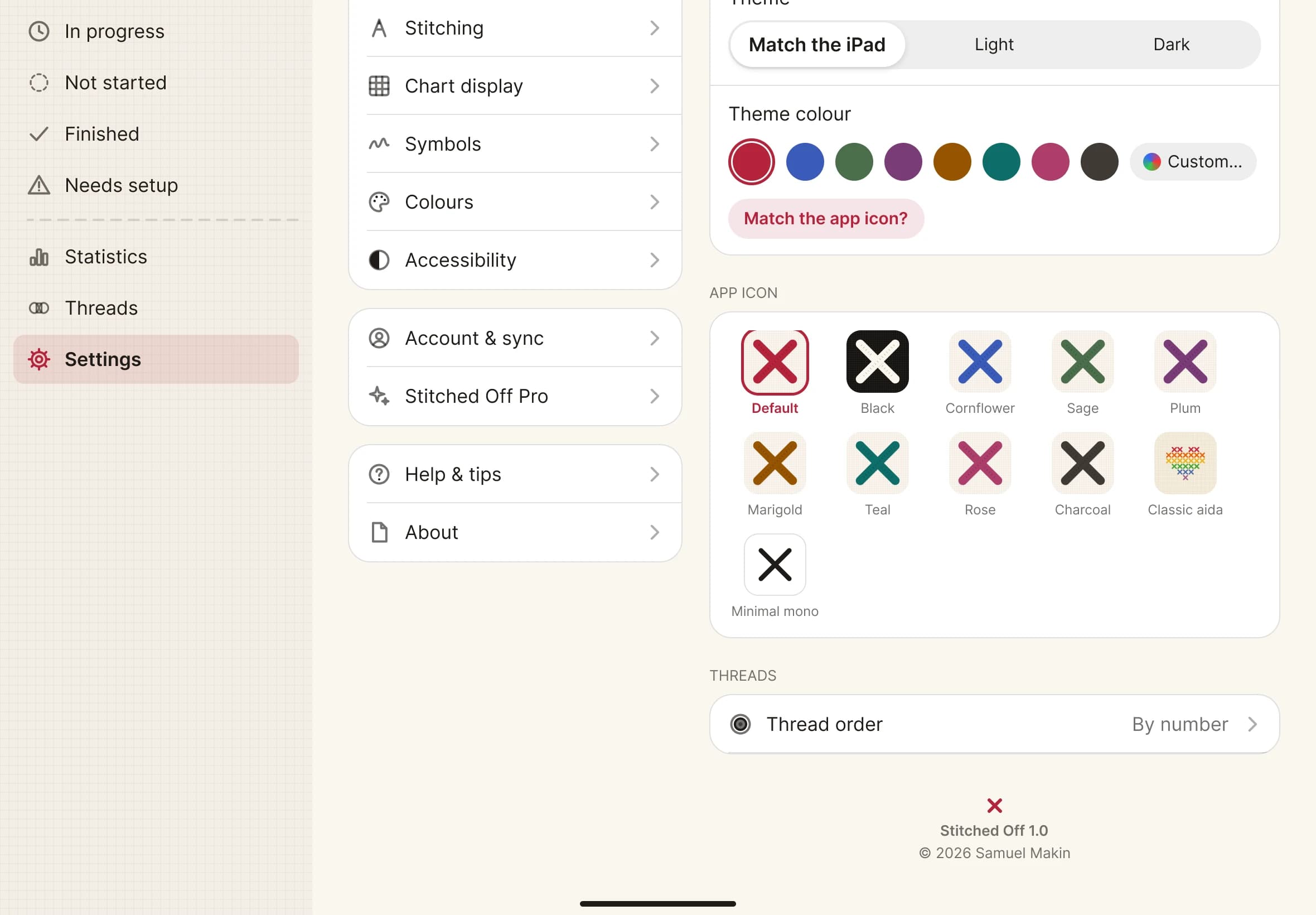
Change the theme colour and app icon
Choose light or dark, pick your colour and swap the icon on your iPad.
What you'll do: make Stitched Off look the way you like, and put a matching icon on your home screen.
Steps
- Open Settings in the sidebar, then General.
- Under Theme, choose Match the iPad, Light or Dark. The change happens straight away.
- Under Theme colour, tap one of the eight colours. Or tap Custom… to choose any colour you like.
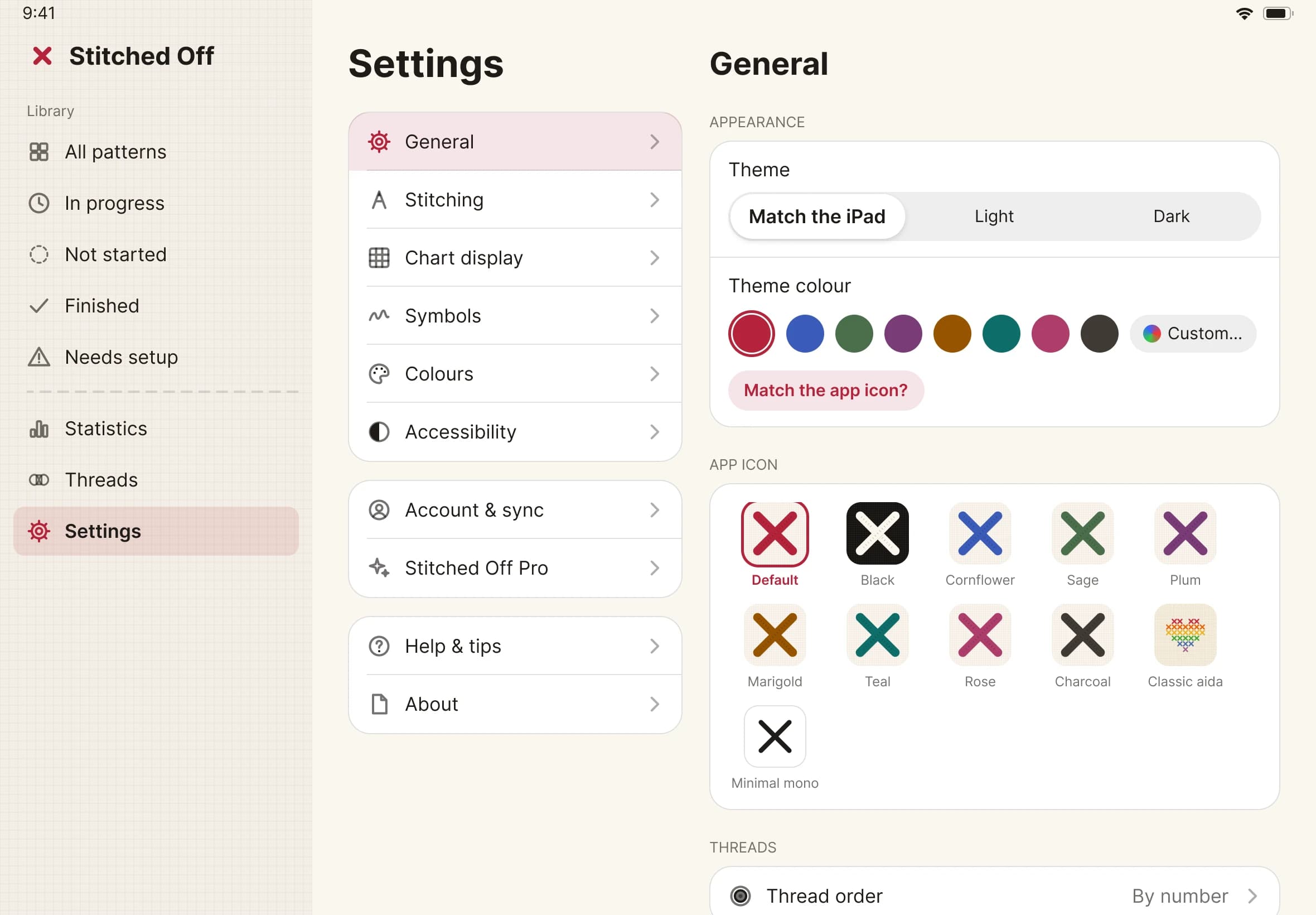
- After you pick one of the eight, a Match the app icon? button appears. Tap it to give the app the icon in the same colour. A custom colour has no matching icon.
- Under App icon, tap any of the eleven to switch: Default, Black, Cornflower, Sage, Plum, Marigold, Teal, Rose, Charcoal, Classic aida or Minimal mono.