
Erase and undo
Take stitches out, and undo or redo any change.
What you'll do: remove stitches you marked by mistake, and step back or forward through your changes.
Steps
- Choose the Erase tool in the tool strip.
- Tap a square to remove its stitch. Drag across several squares to remove a whole run. A banner says how many were erased.
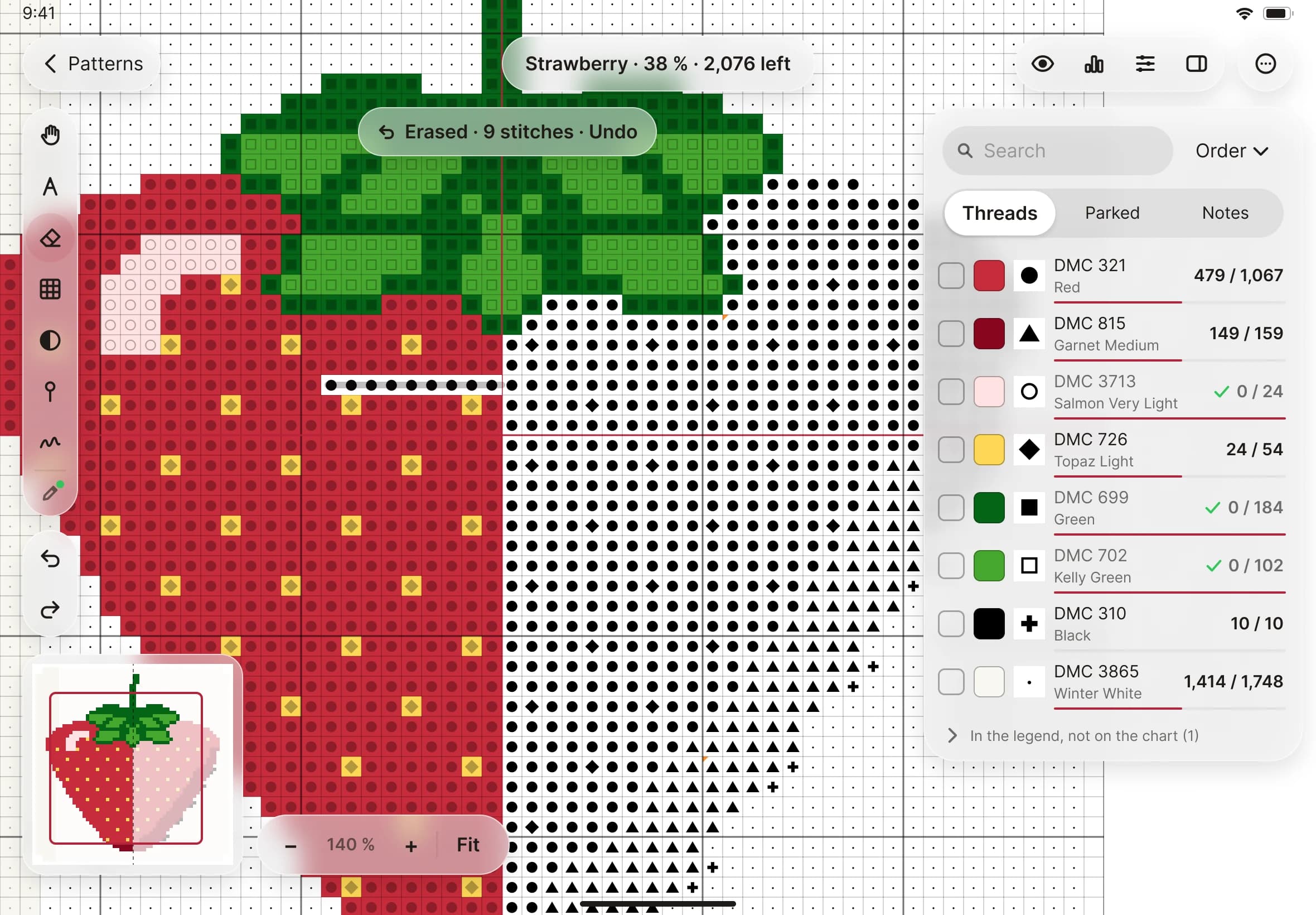
- To step back, tap Undo, the arrow that points left below the tools. One undo takes back one whole gesture, so a long drag comes out in one go.
- To step forward again, tap Redo.
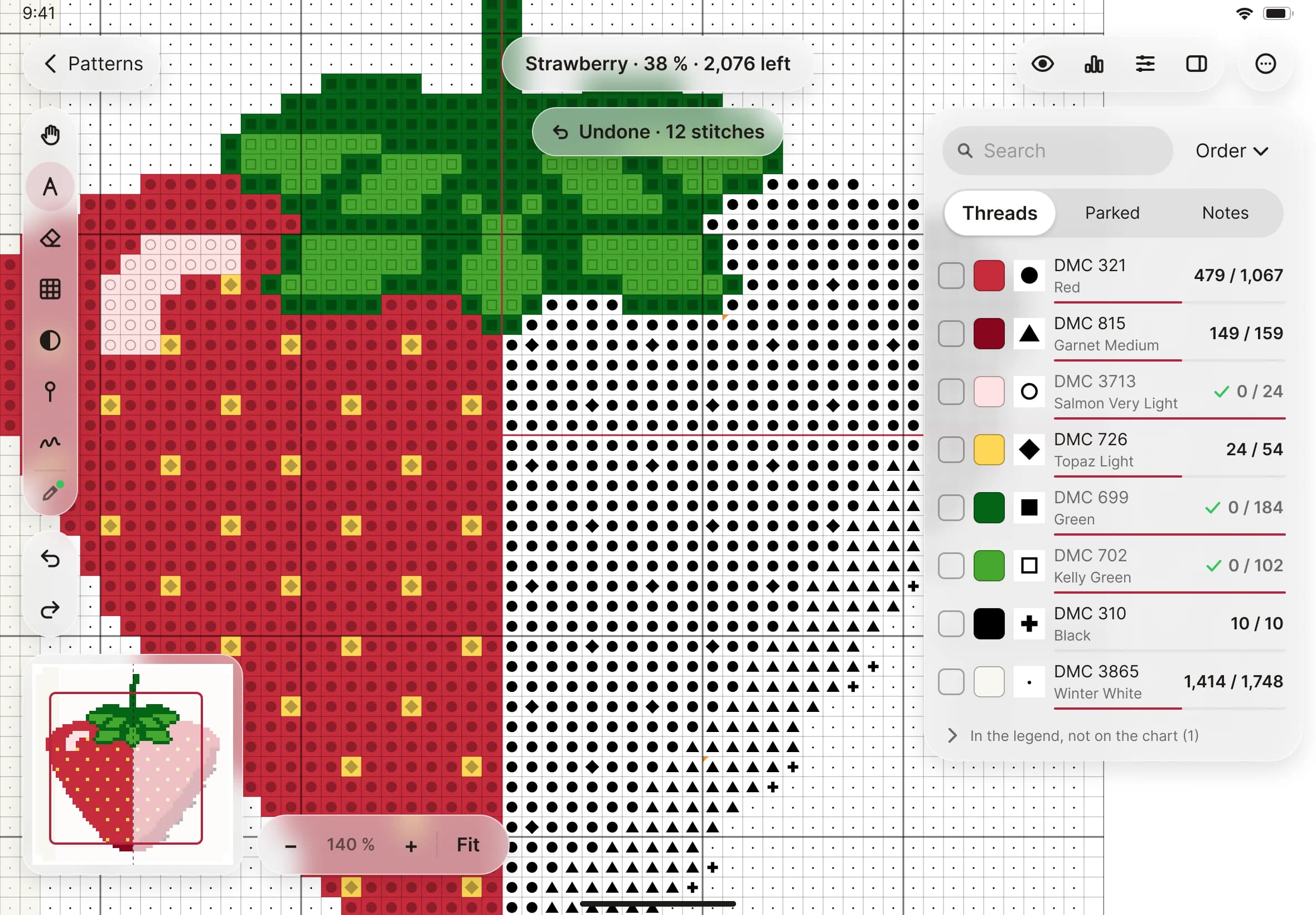
- You can also tap once with two fingers anywhere on the chart to undo.